How To Seamlessly Multitask Across Devices in 2026
Unlock the Power of Android's New 'Continue On' Feature and Boost Your Productivity
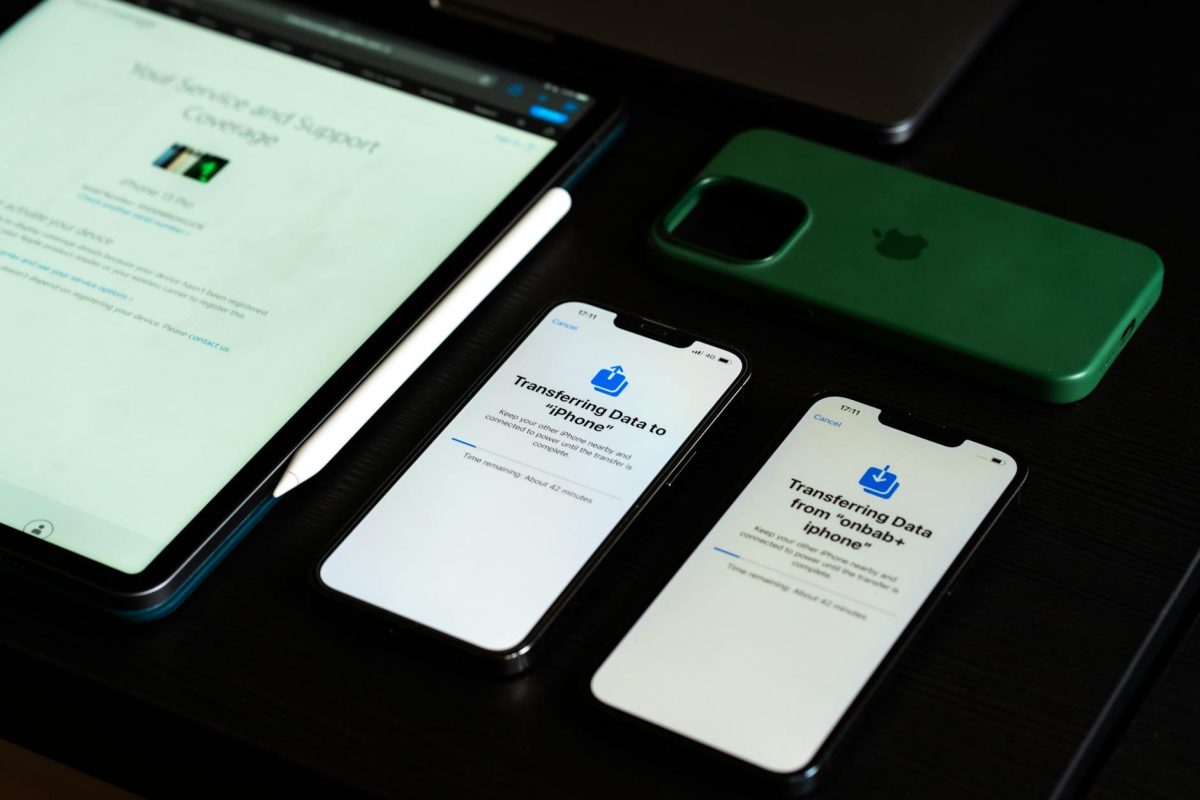
Are you tired of juggling multiple tasks across your phone and tablet? With the latest Android feature, 'Continue On', you can now start a task on one device and pick up where you left off on another. In this guide, you'll learn the simple steps to master this game-changing feature and take your productivity to the next level.
Step 1: **Set Up Your Devices**
Make sure your Android phone and tablet are running the latest operating system. Enable the 'Continue On' feature in your phone's Settings > System > Advanced > Continuity. This will allow your devices to sync and share data seamlessly.
Step 2: **Transfer Tasks Between Devices**
Start a task on your phone, such as typing an email or browsing a website. Tap the 'Continue On' option and select your tablet as the destination device. The task will be transferred, and you can pick up where you left off on your tablet.
Step 3: **Use the Right Apps for Seamless Transition**
Choose apps that support the 'Continue On' feature, such as Google Drive, Google Docs, or Android's built-in Files app. This ensures a smooth transition of data between devices and prevents any compatibility issues.
Step 4: **Customize Your Continuity Settings**
Go to your phone's Settings > System > Advanced > Continuity, and adjust the settings according to your needs. You can choose which apps to share across devices and set the syncing frequency to optimize performance.
Step 5: **Troubleshoot Common Issues**
If you encounter any issues, such as a task not transferring correctly, restart both devices and try again. You can also check the Android website for device-compatibility checklists to ensure your devices meet the requirements for seamless transition.
Step 6: **Maximize Your Productivity**
Practice using the 'Continue On' feature regularly to become more efficient and productive. Experiment with different apps and settings to optimize your workflow and achieve your goals. With time, you'll master this powerful feature and take your multitasking skills to new heights.
Don't forget to update your apps regularly to ensure they remain compatible with the 'Continue On' feature. This will prevent any compatibility issues and ensure a seamless transition between devices.
By following these simple steps, you'll unlock the full potential of Android's 'Continue On' feature and take your productivity to the next level. Remember to practice regularly and experiment with different settings to maximize your results. Happy multitasking!